.jpg)
CultureConnect Members Can Win the Marketing Game Doing these 3 Steps!


Adopting a new system and figuring out how to maximize the features to best fit your goals can be difficult. Here at South Jersey Cultural Alliance (SJCA) we're working on making this as easy as possible for you.
Review each section of this blog to navigate through the process of:
1) updating your profile
2) adding an event to the public calendar and
3) finding out how YOU can best utilize and navigate the Member Dashboard!
How to Update Your Profile
Step 1. Go to https://www.sjca.net
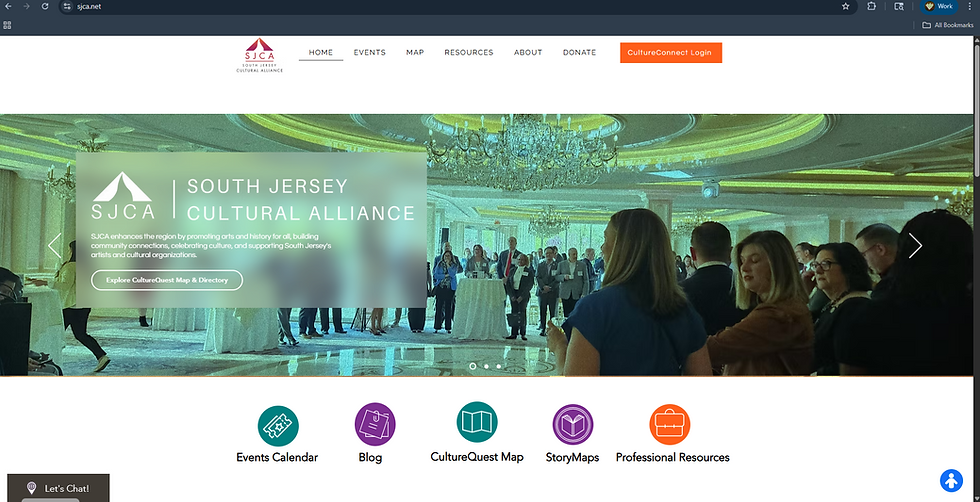
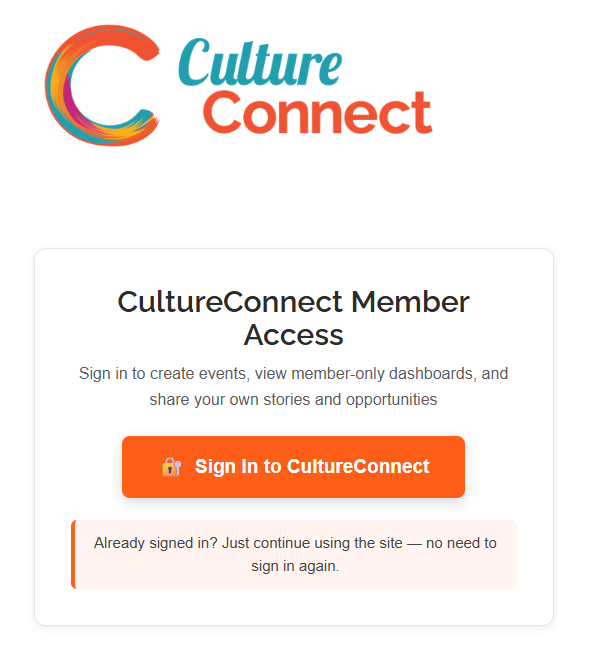
Step 2. Log into CultureConnect


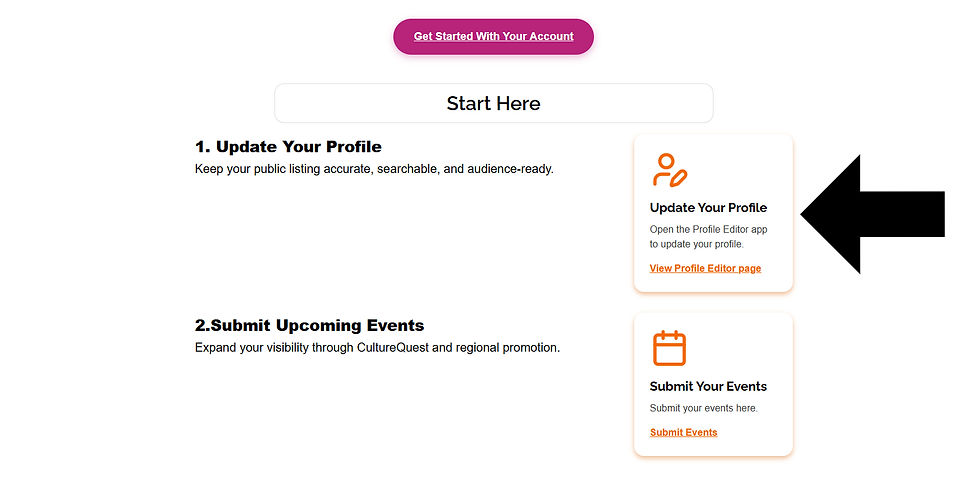
After logging in, scroll down to the "Start Here" section and locate the square labeled "Update Your Profile".
You will be brough to the "My Profile Updater" page.

Your username and member ID are static (unchanging) and cannot change. They are crucial to connecting your profile's data to the system that supports CultureQuest.
When you scroll down, you will see the following DYNAMIC (changing) prompts to update your profile. Please note that these sections may ALREADY be filled in for you. If they are and they are correct you can skip this section and move to the next one:

Organization Name: This includes Organization Names, Business Names, Artist Business Names, Municipality Names, and Community Group Names. If NONE of these categories describe your specific membership type you can enter your Full Name instead.
First Name: Provide the main contact First Name responsible for handling communication between you and a prospective CultureQuest (patron) reaching out to you. Ideally, this would be a communications, marketing, or program manager for organizations. For artists, this should be your own name. For businesses, municipalities, community groups, and others under the Cultural Destination Membership category, please list the most responsive contact for your entity, as this may differ based on structure and size.
Last Name: Provide the main contact Last Name responsible for handling communication between you and a prospective CultureQuest (patron) reaching out to you. Ideally, this would be a communications, marketing, or program manager for organizations. For artists, this should be your own name. For businesses, municipalities, community groups, and others under the Cultural Destination Membership category, please list the most responsive contact, as this may differ based on structure and size.
Professional Title: Identify the ROLE the main contact you have listed has at your .
Full Name: Combine the First & Last Name you wrote in the above prompt.
Once you approve or update the section above you will scroll down and find the next section, "Primary Category".

This section is DYNAMIC but requires ADMINISTRATIVE request to update.

If you do not agree with the "Primary Category" and or "NAICS code" that has been selected for you, please submit is request to change your category in the form below.
Next section is "Email, Website & Overview"

Fill in your primary and secondary email.
Fill in your primary website URL that you want the general public to navigate to.
It is crucial that you provide a mission statement or an overview/description statement for your profile.
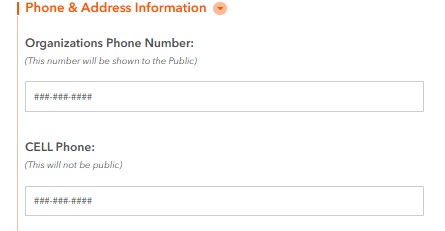
Once completed, scroll down and click "Phone & Address Information."
For "Organizations Phone Number" please provide the phone number you would like the public to use to contact you.
For "Cell Phone" please provide the phone number you would like SJCA to use to contact you.
For "Confirm Your County for your Public Profile" select the county associated with the MAIN address that will be visible on your profile. The only membership that will NOT have a visible address is our Individual Membership (Artists). Individual Membership will only have their county listed, making it CRUCIAL to provide what county you primarily reside/work in. For other membership types, select the county in which your headquarters or business is located. If there is more than one location, select the MAIN address.

For "Main Organization Address" fill out your PRIMARY address you would want to general public to navigate to when visiting your site. If you have a different address for the public to visit than your main address. For example, you have a main address that is a PO Box but a site address that is a physical location people can visit, you should select yes. If you are an Individual Artist you should select no UNLESS you have a physical site you are consistently at you would like the general public to visit, like a studio.


7. Next, Navigate to the section under and select "Other Items." This is where you determine how some of your information does or does not show up on your public profile.
"Confirm Preferred Mailing Address": If you select "ORG" this will set your MAIN ADDRESS to be the one that is visible to the public when you profile is LIVE.
"Confirm whether your profile should be visible on the CultureQuest Map and Directory": Select "TRUE" to make your profile visible to the public. If you select "FALSE" your profile will not be visible to the public.
"Confirm if you want to display your address and phone number to the public": If you are an Individual Member (Artists) your address and phone number will not be shown on the map. If it is, please contact info@sjca.net immediately. Organization's will have their SITE address shown when selecting "Yes." Selecting "No" will make it so only your COUNTY and EMAIL will be listed under this section.

8. Finally, Navigate to "Add additional images for your Public profile page." It will ask if you want to keep or change your Public Profile Image. If you would like to keep it, select "No" if you would like to change it select "Yes."

After selecting "Yes" you will be prompted to add photos. The first photo you upload will be your PROFILE PHOTO the photo's after the first photo will be your gallery on the profile page.

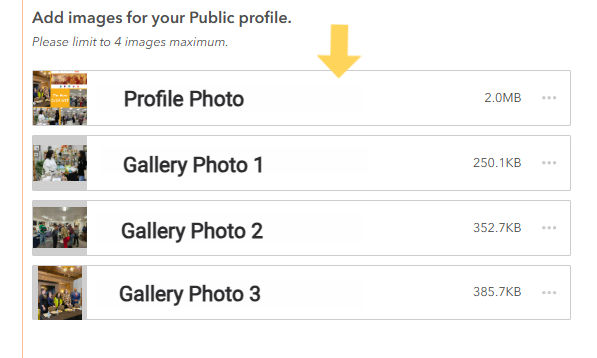
Once you have completed your uploads. Press the orange "Submit" button.

If you are a NEW member of SJCA your full profile should be ready in 3 - 5 business days. If you are a recurring member your profile should be updated in 1 - 3 business days.
Add an Event to the Calendar
Step 1. Go to https://www.sjca.net
Step 2. Log into CultureConnect
After logging in, scroll down to the "Start Here" section and locate the square labeled "Submit Your Events". This should be found beneath "Update Your Profile". Click on "Submit Your Events" to go to the events submission form.

Filling out the Form:
Identifying the target audience for this event is crucial, whether it's CultureQuest or CultureConnect. An event can only have ONE designated audience, which dictates who can access it. CultureConnect is intended for colleagues in the arts and culture sector, while CultureQuest targets programming for the general public. If your submission is relevant to both the general public and the sector, you must submit it twice—once for CultureConnect and once for CultureQuest—to appear on both calendars.

Next, provide a brief title and description for your event. You have up to 4000 characters to elaborate on your event details. We recommend creating a succinct description that clearly informs the audience about the event's content and the benefits of attending.
Choose a category: art, history, art & history, environmental, festivals & cultural destinations, creative businesses, unknown/other. You may only choose ONE category. These categories are meant to help audience's filter by interest to better curate their search for events and programming.

While optional, we strongly encourage you to upload an event image. Formats supported for uploads are PNG & JPEG. If you run into an error uploading an event photo email info@sjca.net for assistance and we will assist you as soon as possible.
If you have a specific registration page or a page with crucial information on your site add it to the event url here. Once this event shows up on the calendar it will propagate as a button for the public to navigate to that information.
Organizer Name and Email automatically propagate your Organization name and email from your account, however, this part of the form is customizable if you need to change it.

Sponsor Name and Url: If you have a specific sponsor for the event you are promoting provide their name and link here.

Where: Specify the event's location. It can be In-person, Online, or Both. For In-person events, include the venue name and address. For online events, provide a URL for attendance. If it's both, supply all necessary details.

When: Decide if this is an all-day event. If it is, the form will ask for the date and start time.
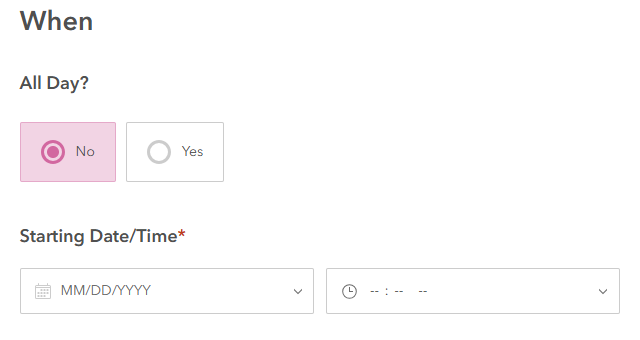
If it is NOT an all day event you will have to enter the Starting and Ending Time and Date.

After completing the form, click the button labeled "Click here to submit your event" at the bottom to finalize your submission. Once submitted, your event will be sent to the staff for detail confirmation and approval for public viewing.

Comments